Activating Dragonfly
Dragonfly may be locked if your trial period has ended or if your license has expired. If this is the case, you will need an activation key to unlock the application. You should note that Dragonfly has two licensing models — node-locked and floating (see Licenses) . If you are activating a floating license, you will also have to provide the location of the license server. Your system must be connected to the Internet to activate a Dragonfly license.
- Choose Help > Activate Product on the Menu bar.
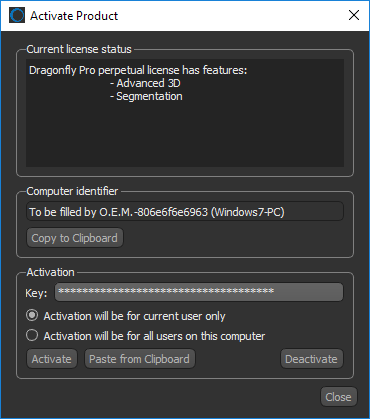
The Activate Product dialog appears.
- If previously advised by ORS, copy the Computer identifier value and email it to the ORS Support Center.
- Enter or paste the activation key or keys you received in the Activation box. Use a separate line for each activation key.
- Select an activation option — Current user only or All users on this computer.
- Click the Activate button to unlock the application.
- Do the following if the Floating License Configuration dialog appears:
- If your license server is on the ORS public server, select License server is the ORS public server. Note that all systems must be connected to the Internet to use this service.
- If your license server is installed on a local area network, select License server is a local (LAN) server and then enter the address of the server in the edit box. For example, http://123.456.7.890.
- If your license server is installed on a shared network drive, select License server is on a network share and then enter the path of the network share. You can also click the Browse button and then select the network share in the Open dialog.
- Click OK to save the floating license configuration.
- Click Close to exit the dialog.

 LEARNING LINKS

